- Accueil
- Tasks and projects
-
Jira Integration
Jira Integration
Solution for monitoring Jira issues in Bitrix24
Installer
Gratuit
Achats in-app
-
ÉvaluationAucune évaluation
-
Installations3587
-
DéveloppeurBitrix24 Integrations
Description
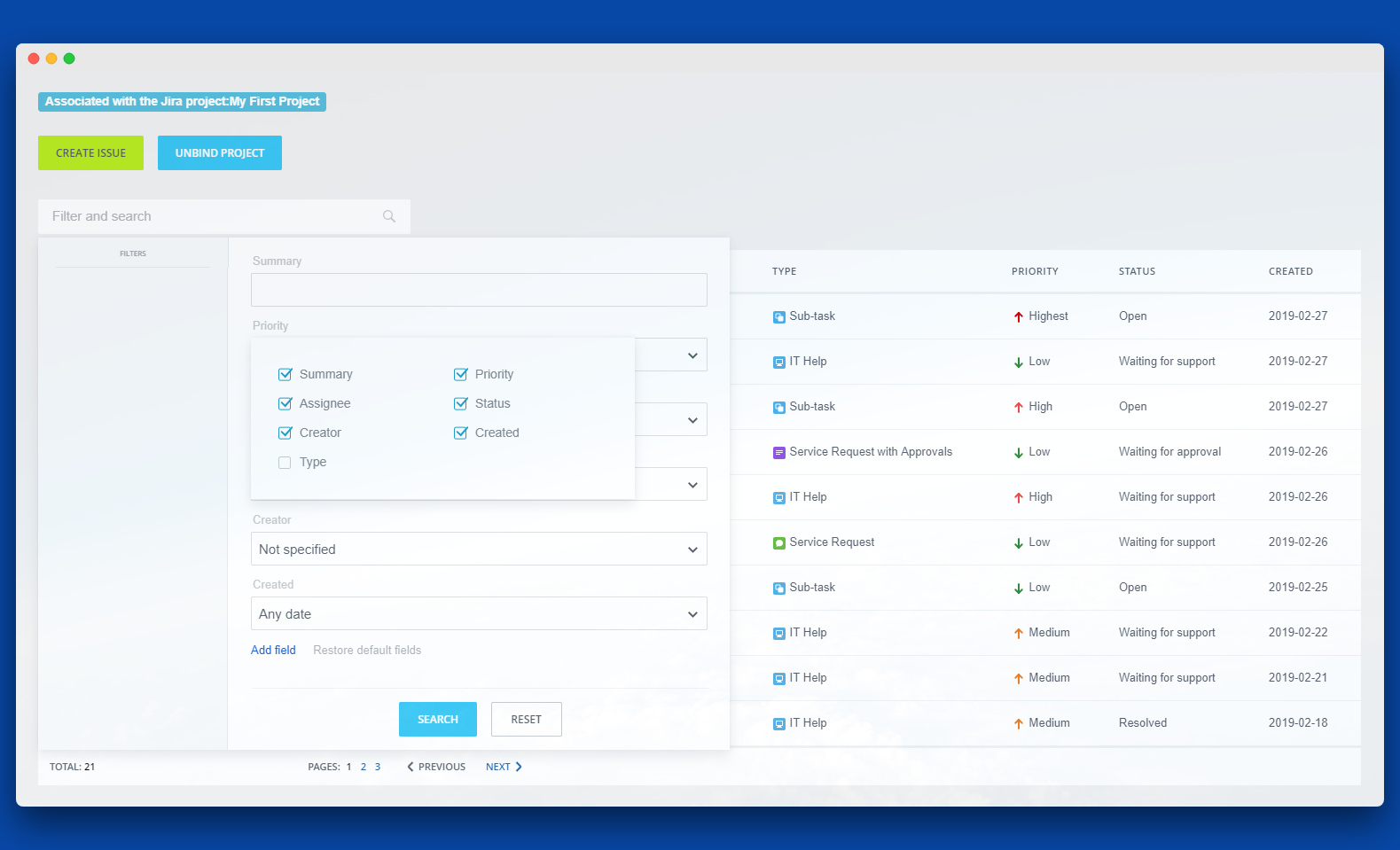
The integration app lets you create, view and edit Jira issues directly from Bitrix24.
Functionalities of the app include:
The app works with Bitrix24 commercial plans only.
Free plan users can test it during the trial period and then upgrade to a commercial subscription.
Functionalities of the app include:
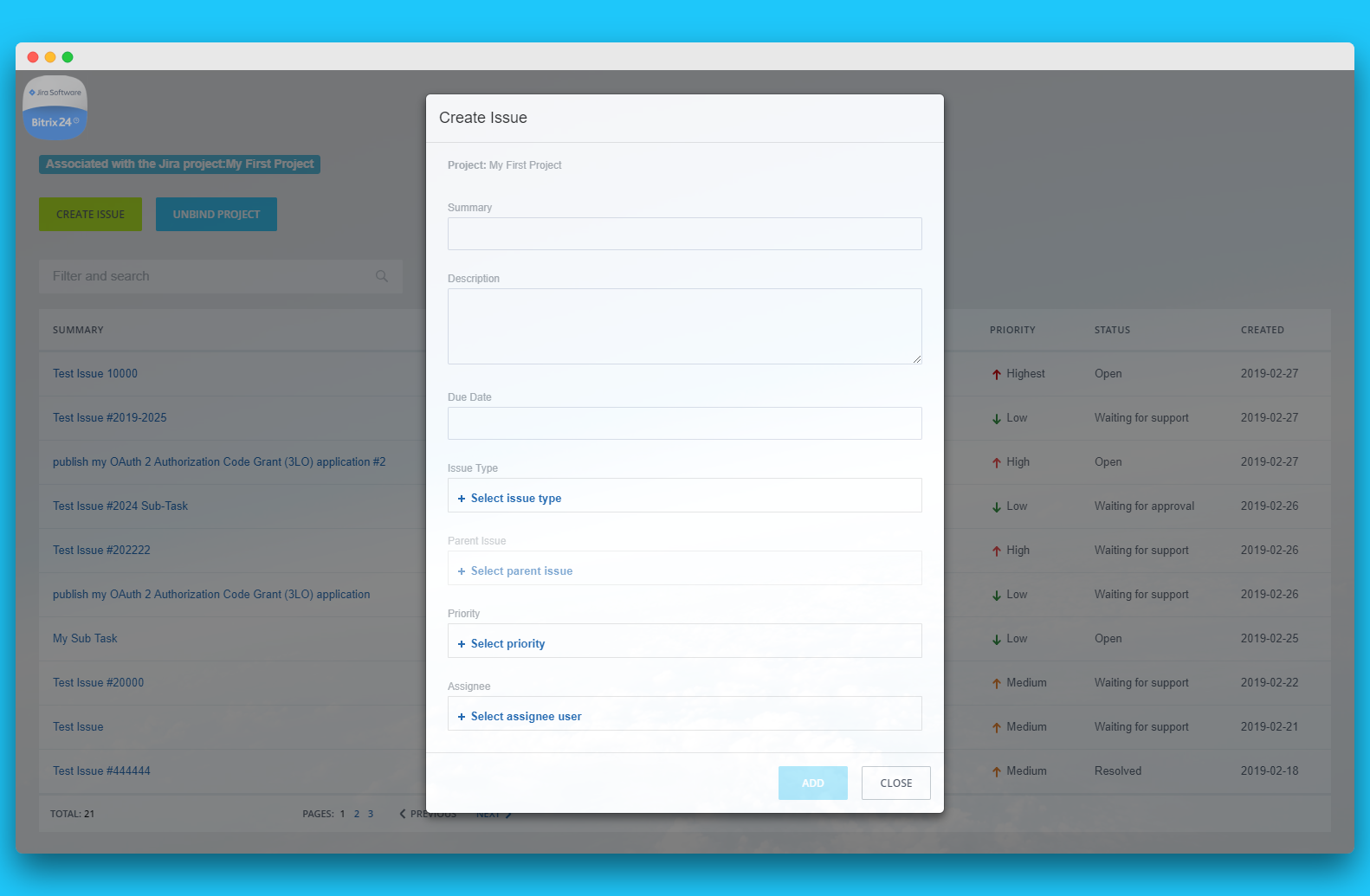
- Creating a Jira issue. Create an issue directly from a Bitrix workgroup.
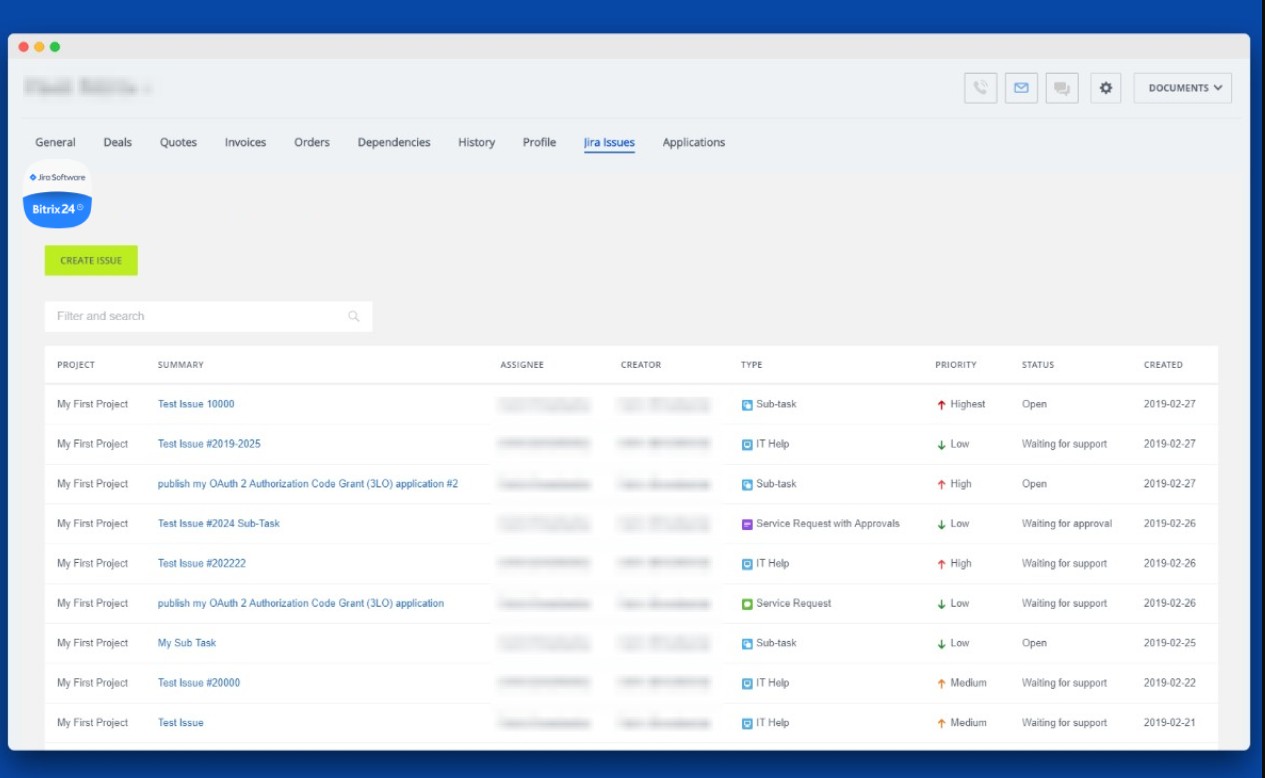
- List of Issues. View the list and status of all issues.
- Issue details. Manage how an issue works, by going to a Jira issue via link.
The app works with Bitrix24 commercial plans only.
Free plan users can test it during the trial period and then upgrade to a commercial subscription.
Assistance technique
If you are facing an issue or would like to receive some more information about the app, kindly contact Bitrix24 support. Our dedicated Integrations support team will be delighted to assist you and provide guidance on any inquiries you may have regarding the app.
Additionally, we highly recommend following the steps outlined in this article to troubleshoot common issues in the event that the app is not functioning or connecting as expected.
Instructions d'installation
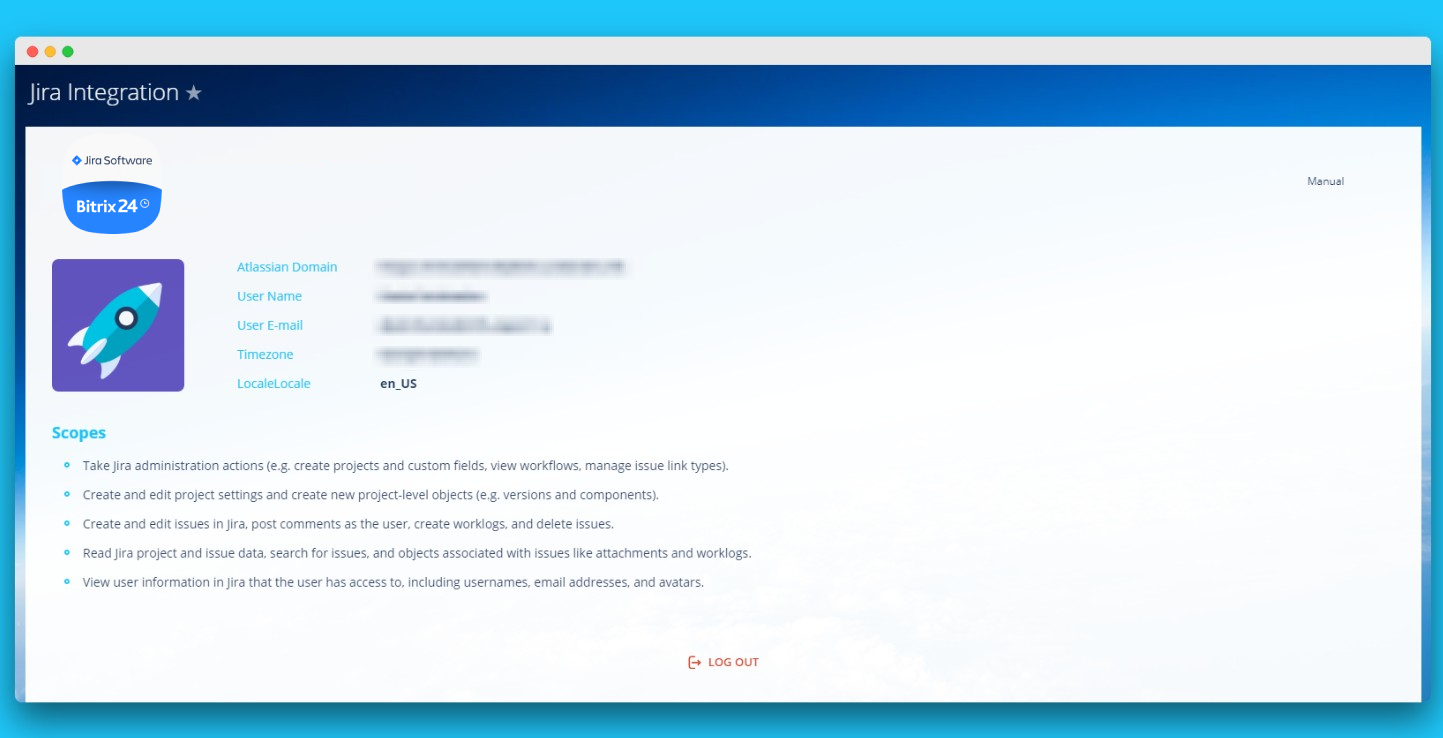
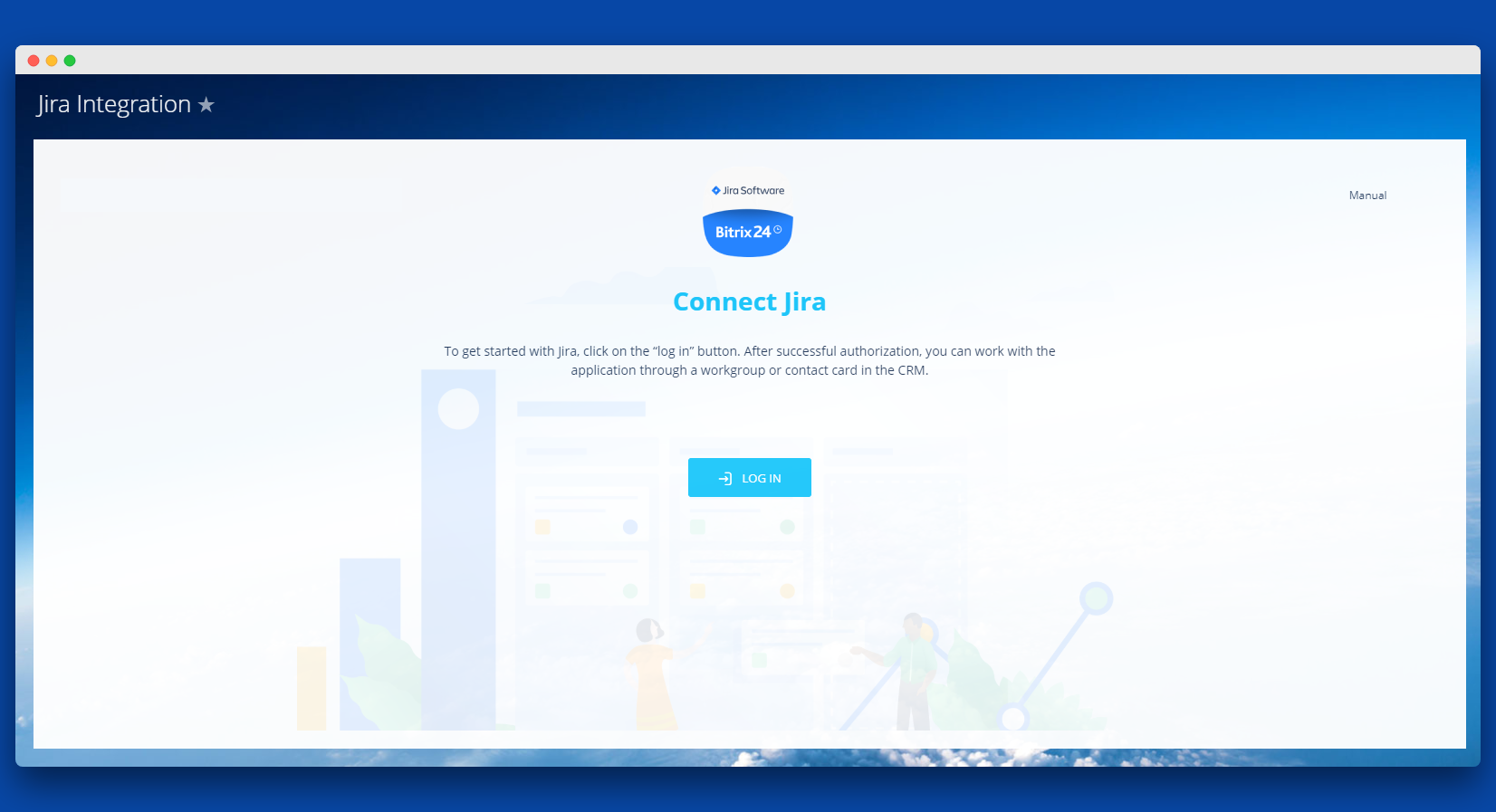
To get started with Jira, click on the “Log in” button to authorize in the application. If the user is not authorized in Jira, a window with authorization will appear after clicking on the “Log in” button.
After successful authorization, a screen with a list of access rights (scopes) will be displayed as well as a list of accounts that can be connected with Bitrix24. After selecting the account, the user needs to click on the “Accept” button.
After clicking on the “Accept” button, the user will return to the application page with the data from Jira.
After successful authorization, a screen with a list of access rights (scopes) will be displayed as well as a list of accounts that can be connected with Bitrix24. After selecting the account, the user needs to click on the “Accept” button.
After clicking on the “Accept” button, the user will return to the application page with the data from Jira.
Sécurité des données
Jira Integration
L'application demande des autorisations pour accéder aux données :
CRM
accès complet : afficher, créer, modifier et supprimer des prospects, contacts, entreprises, offres, factures, devis, activités, champs d'utilisateurs, etc.
Drive
accès complet : visualiser, créer, modifier et supprimer les stockages, dossiers et fichiers
Tâches
accès complet : visualiser, créer, modifier et supprimer des tâches, listes de contrôle, commentaires, fichiers, dépendances, coûts ; visualiser, créer, modifier et supprimer des étapes
Utilisateurs
accès complet : visualiser, créer, modifier et supprimer des utilisateurs
Groupes de travail
accès complet : visualiser, créer, modifier et supprimer des groupes de travail ; gérer les utilisateurs
Chat et Notifications
accès complet : afficher, créer, modifier et supprimer les conversations et messages ; connecter les utilisateurs aux chats ; modifier les chats ; lire tous les messages de chat
Incorporation de l'application
accès complet : visualiser, créer, modifier et supprimer des widgets
Évaluation
0 /5
5 étoiles
0
4 étoiles
0
3 étoiles
0
2 étoiles
0
1 étoile
0
Avis
Aucun avis !